Self-host browser-use AI browser agents
AI agents that browse in a Chrome you can watch, on your own VM.
Shelley handles the setup. About 10 minutes.
Prefer a terminal?
curl -fsSL https://exe-staging.dev/deploy/browser-use/prompt.txt | ssh exe.dev new --prompt=/dev/stdinbrowser-use turns a task in plain words into a browser session: the model reads the page, then clicks, types and scrolls in a real Chrome until it has the answer. Version 1.0 lets the model write short Python against Chrome's DevTools protocol instead of picking one action at a time, so most tasks finish in a handful of steps. It's MIT-licensed, with over 120,000 stars on GitHub.
On an exe.dev VM, the agent's Chrome runs on a desktop you open in a browser tab, so you watch every step and can take the mouse. The models come through exe.dev's LLM integration, so there's no API key to buy or paste. The disk is persistent, so sites the agent is signed in to stay signed in, and a small service lets you, a scheduled job, or another agent such as Claude Code hand it tasks over HTTP or MCP. Everything is private to you behind exe.dev login.
What you get#
- browser-use 1.0.6 in
~/browser-agent, with models through exe.dev's LLM integration and no API key on the VM agent.py: runs a task in plain words in Chrome on the desktop, and logs each run's answer, steps and cost- The desktop at
https://<vm>.exe.xyz:8444/, behind exe.dev login, to watch the agent and sign its browser in to sites - An MCP server and HTTP API at
https://<vm>.exe.xyz:8080/, for you, other agents, and scripts with a VM token - browser-use's telemetry turned off
What's running, and where
https://my-browser-use.exe.xyz:8444/
the desktop, to watch the agent and to sign it in to sites
https://my-browser-use.exe.xyz:8080/
a form, the HTTP API, and MCP at /mcp, for you and clients with a VM token
ssh my-browser-use.exe.xyz
your terminal, to run tasks with agent.py
Deploy with Shelley#
Click Deploy and Shelley will set up Browser Use on a new VM, then check that it works. No config-file wrangling required.
Prefer a terminal?
curl -fsSL \
  https://exe-staging.dev/deploy/browser-use/prompt.txt \
  | ssh exe.dev new --prompt=/dev/stdin
What Shelley is told
Set up Browser Use on this VM by following the exe.dev recipe at https://exe-staging.dev/deploy/browser-use.md?via=deploy from top to bottom.

The recipe's example VM name is my-browser-use. This VM's name is the output of `hostname`: use it wherever the recipe writes my-browser-use. Skip the step that creates the VM; you are on it.

You are done when all of these are true. Check each one yourself:
- browser-use 1.0.6 in `~/browser-agent`, with models through exe.dev's LLM integration and no API key on the VM
- `agent.py`: runs a task in plain words in Chrome on the desktop, and logs each run's answer, steps and cost
- The desktop at `https://<vm>.exe.xyz:8444/`, behind exe.dev login, to watch the agent and sign its browser in to sites
- An MCP server and HTTP API at `https://<vm>.exe.xyz:8080/`, for you, other agents, and scripts with a VM token
- browser-use's telemetry turned off

Run setup.sh as in "Set up by hand" (skip creating the VM). Then run
the first task from "Run a task" and check it ends with `[ok]`. Don't
sign in to any site for the person, and don't add a timer or share the
VM unless they ask. Finish with the desktop's URL, the form's URL, and
how to sign the agent in to a site from "Sign the agent in to sites".

Finish with the URLs I should open.
Also at /deploy/browser-use/prompt.txt. The recipe it follows is /deploy/browser-use.md.
Set up the VM#
Deploy does this for you. By hand, it's one script: it sets up the Linux desktop (Xfce, Google Chrome, and KasmVNC to show it in a tab), installs browser-use, and starts the service.
Set up by hand
On your computer, create a VM and connect. Pick any free name; if you've already clicked Deploy or have a VM, skip the first command and use its name:
ssh exe.dev new --name=my-browser-use
ssh my-browser-use.exe.xyz
On the VM, read setup.sh, then run it:
curl -fsSL https://exe-staging.dev/deploy/browser-use/setup.sh | bash
On a new VM it takes about three minutes. It:
- Runs the Linux desktop setup, unless that's
already done: Xfce on display
:1, KasmVNC serving it on port 8444, and Google Chrome from Google's apt repository. - Makes a uv project in
~/browser-agentwithbrowser-use==1.0.6, pinned exactly as upstream recommends, and downloads agent.py and server.py into it. - Turns off browser-use's anonymous telemetry, which would report the URLs the agent visits and its answers.
- Puts an Agent's Chrome launcher on the desktop, and starts
server.pyas thebrowser-agentsystemd service on port 8080, restarted on failure and after a reboot.
It ends with:
browser-use 1.0.6 (browser-harness 0.1.13)
active
API: HTTP 200
Desktop: https://my-browser-use.exe.xyz:8444/
API and MCP: https://my-browser-use.exe.xyz:8080/
Running it again is safe: it upgrades to the pinned version and keeps your profiles and runs. Nothing here uses Docker.
Run a task#
Open https://my-browser-use.exe.xyz:8444/ in your browser and sign in
to exe.dev if asked: that's the desktop. Then, on the VM:
cd ~/browser-agent
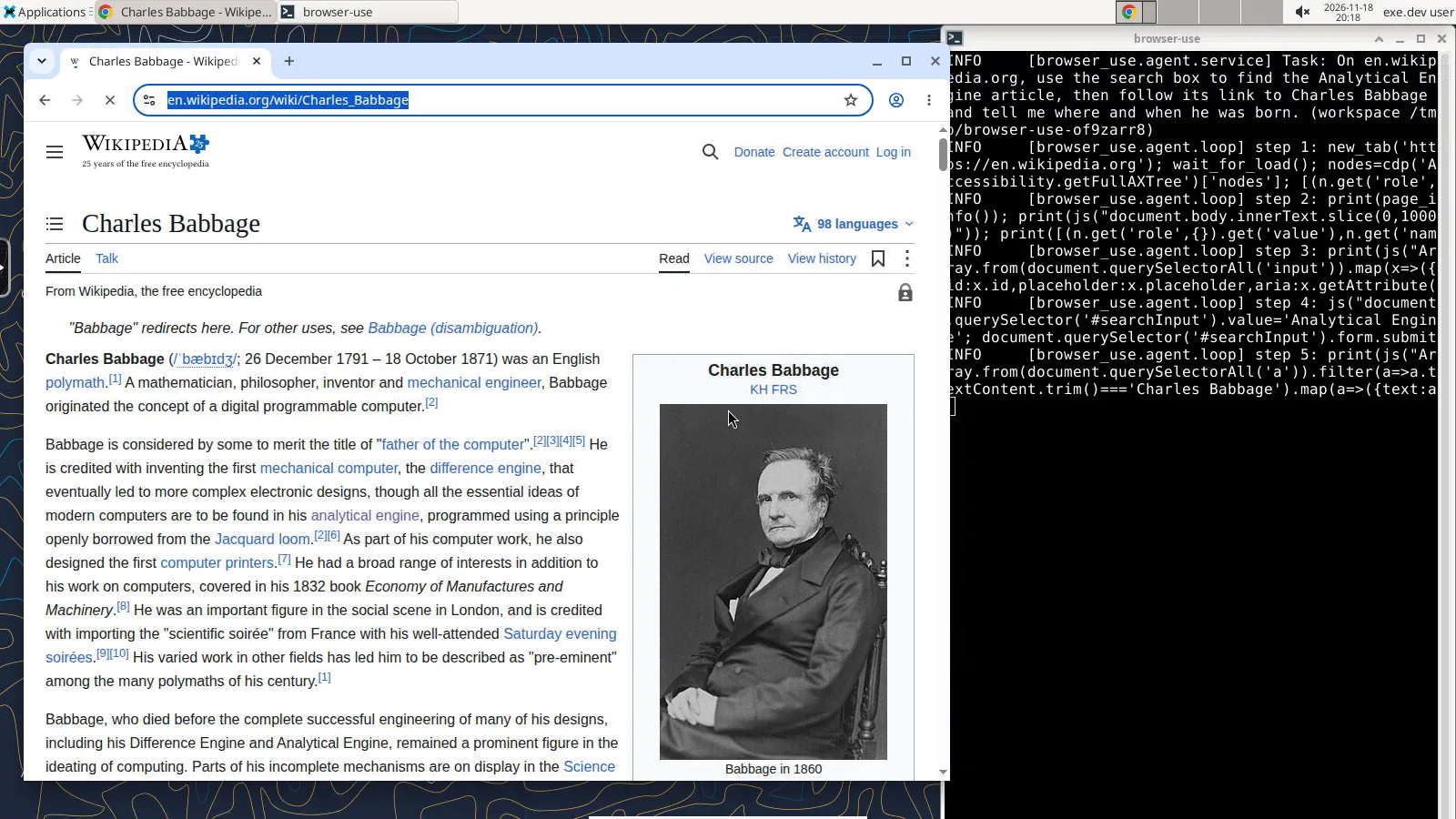
uv run agent.py "On en.wikipedia.org, use the search box to find the Analytical Engine article, then follow its link to Charles Babbage and tell me where and when he was born."
Chrome opens on the desktop and the agent gets to work, printing a line per step with the Python it ran. It ends with the answer and a summary:
Charles Babbage was born on 26 December 1791, most likely at 44 Crosby Row,
Walworth Road, London, England. Wikipedia notes that his birthplace is disputed.

[ok] gpt-6-luna, 55.3 s, $0.0017, log /home/exedev/browser-agent/runs/20261118T201641Z-10036.json
[ok] means browser-use's judge, a second look by the model at the
answer and the steps, agreed the task was done; agent.py exits with 1
when it didn't. When the task ends, Chrome closes. Each run's JSON log
has the task, answer, steps, judge's verdict, time and cost.
Options:
| Flag | What it does |
|---|---|
--model claude-sonnet-5-5 |
another model from the LLM integration; the default is gpt-6-luna, or BU_MODEL |
--profile work |
a different browser profile, with its own logins (see below) |
--headless |
Chrome without a window, not on the desktop |
--max-steps 20 |
stop after this many steps (default 50) |
--email |
mail the result to you, the VM's owner |
Write tasks the way you'd brief a person: name the site, say what to do, and say what you want back. "Open https://www.python.org/downloads/ and tell me the newest Python release and its release date" finishes in two steps; "find out about Python" wanders. Ctrl-C stops a run.
Tip
Some sites throttle or block traffic from cloud servers, and a few ask for a CAPTCHA. With the desktop open you can solve it yourself while the agent waits, or sign in first (next section), which often avoids the check.
Sign the agent in to sites#
The agent's Chrome keeps its cookies in a profile on the VM's disk,
~/browser-agent/profiles/default, so a site you sign it in to once
stays signed in for later tasks. To sign in, double-click Agent's
Chrome on the desktop, or on the VM run:
cd ~/browser-agent
uv run agent.py --login https://github.com/login
Chrome opens on the desktop with the agent's profile. Sign in, tick Keep me signed in or Remember me where the site offers it, and close Chrome. The tick matters: Chrome closes after every task, and only cookies with an expiry date survive that. Tasks wait while you have the profile open, since Chrome can open a profile only once.
For separate sets of accounts, use separate profiles:
--login --profile work and then --profile work on tasks. Profile
names are letters, digits, - and _.
Warning
A signed-in agent acts as you on that site, and a web page can contain instructions meant to steer it. Sign it in only to accounts you would hand to an assistant, preferably ones with limited rights, never to your email, bank, or cloud admin console. Anyone you share the VM with can run tasks with these sessions. Passwords for scripts belong in files with mode 600, or better in agent secrets, not in task text.
Start tasks from a browser, a script, or another agent#
The browser-agent service on port 8080 runs the same tasks for
anything that can make a web request. Open
https://my-browser-use.exe.xyz:8080/ for a form: type a task, press
Run, and watch it on the desktop; the page answers with the run's JSON
when it's done. /runs lists the last 20 runs, with who started each.
HTTP#
From a script on your computer, use a token for the VM. On your computer:
ssh exe.dev ssh-key generate-api-key --vm=my-browser-use --label=browser-tasks
It prints a token starting with exe1.. Save it in a file only you
can read, such as ~/.browser-use-token with chmod 600. Then:
curl https://my-browser-use.exe.xyz:8080/run \
  -H "X-Exedev-Authorization: Bearer $(cat ~/.browser-use-token)" \
  -H 'Content-Type: application/json' \
  -d '{"task": "Open https://www.python.org/downloads/ and tell me the newest Python release."}'
The request waits for the task and answers with the run: result,
success, steps, cost_usd, seconds, and the rest of the log.
model and profile are optional fields. Without the token, exe.dev's
proxy answers 401 and the request never reaches the VM. See
HTTPS tokens for VMs for expiry and other
options.
MCP#
At /mcp the same service is an MCP server with one tool,
browser_task(task, model, profile), so a coding agent can hand off
anything that needs a browser and get the answer back. Claude Code on
the VM (the desktop setup connects it to the LLM integration):
claude mcp add --transport http browser-use http://localhost:8080/mcp
claude -p "Use the browser-use browser_task tool to find the latest Python release on python.org, then answer with just the version number." --allowedTools mcp__browser-use__browser_task
Claude Code answers 3.15.2 after the agent visits python.org on the
desktop. From Claude Code anywhere else, on your computer or another
VM, add the server with a token for this VM:
claude mcp add --transport http browser-use https://my-browser-use.exe.xyz:8080/mcp \
  --header "X-Exedev-Authorization: Bearer $(cat ~/.browser-use-token)"
Other MCP clients take the same URL and header. A task holds the request open until it's done, usually under a minute.
Note
browser-use also has a built-in stdio MCP server,
browser-use --cli-mcp, which gives an agent low-level tools to drive the browser itself. Thebrowser_tasktool here is the other way round: the calling agent hands over a whole task, and browser-use's own loop does the browsing.
Run tasks on a schedule#
A systemd timer runs a task at a set time, even when you're not
connected, and --email sends you the result through exe.dev's
email gateway. On the VM:
sudo tee /etc/systemd/system/browser-agent-daily.service >/dev/null <<'EOF'
[Unit]
Description=Daily browser-use task

[Service]
Type=oneshot
User=exedev
WorkingDirectory=/home/exedev/browser-agent
ExecStart=/home/exedev/browser-agent/.venv/bin/python agent.py --email "Open https://www.python.org/downloads/ and tell me the newest Python release and its release date."
EOF
sudo tee /etc/systemd/system/browser-agent-daily.timer >/dev/null <<'EOF'
[Unit]
Description=Run the daily browser-use task

[Timer]
OnCalendar=*-*-* 07:00:00 UTC
Persistent=true

[Install]
WantedBy=timers.target
EOF
sudo systemctl daemon-reload
sudo systemctl enable --now browser-agent-daily.timer
Try it now with sudo systemctl start browser-agent-daily.service;
journalctl -u browser-agent-daily -n 20 shows the steps and the
answer, which also goes to your email.
systemctl list-timers shows the next run. If the desktop is up, you
can watch scheduled runs too. For more tasks, copy both files under
new names.
Run many agents at once#
One VM runs one task per profile at a time; tasks for the same profile queue. For parallel work, copy the VM. On your computer:
ssh exe.dev cp my-browser-use my-browser-use-2
The copy is ready in seconds with everything in place: desktop, service,
profiles and their logins. Its desktop and API are at
my-browser-use-2.exe.xyz, and a token from generate-api-key --vm=my-browser-use-2 reaches it. Copies of a signed-in VM carry those
sessions, so delete them with ssh exe.dev rm my-browser-use-2 when
you're done.
Write your own agent#
agent.py is short, and browser-use's Python API is the place to go
further. This script asks for structured output and keeps the agent on
one site; save it in ~/browser-agent as releases.py:
import asyncio

from browser_use import Agent, Browser, ChatOpenAI
from pydantic import BaseModel


class Release(BaseModel):
    version: str
    date: str


async def main():
    agent = Agent(
        "List the three newest Python releases on python.org/downloads.",
        llm=ChatOpenAI(model="gpt-6-luna", base_url="https://llm.int.exe.xyz/v1", api_key="exe-gateway"),
        browser=Browser("chromium", allowed_domains=["*.python.org"]),
        output_model_schema=list[Release],
    )
    history = await agent.run(max_steps=20)
    for release in history.structured_output or []:
        print(release.version, release.date)


asyncio.run(main())
DISPLAY=:1 uv run releases.py
It prints three lines like 3.15.2 October 25, 2026. DISPLAY=:1 puts
Chrome on the desktop; without it, Chrome runs headless. The API key is
a placeholder: the LLM integration supplies the real one.
A few things to know:
Browser("chromium")starts the VM's Google Chrome. PlainBrowser()means Browser Use Cloud, which needs an account. Adduser_data_dir=...for a profile that keeps logins.- For Claude, use
ChatAnthropic(model="claude-sonnet-5-5", api_key="exe-gateway")withANTHROPIC_BASE_URL=https://llm.int.exe.xyzin the environment. allowed_domainsis a guard against wandering, not a sandbox.sensitive_data={"https://site": {"password": "..."}}lets the agent type a secret by name, only on that site, and masks it in the model's view and the logs. It's not a sandbox either: code the model writes can still read it.- Chrome's DevTools port listens on
127.0.0.1, so anything running on the VM can attach to it while a task runs. Don't run untrusted code next to a signed-in agent.
The browser-use docs cover the rest. For agents that drive a desktop with screenshots and clicks rather than the DevTools protocol, see Computer use; for a browser other agents drive themselves, Cloud browser.
Back up and restore
The state worth keeping is in ~/browser-agent: profiles/ (cookies
and logins) and runs/ (the logs). Copying the VM keeps everything. On
your computer:
ssh exe.dev cp my-browser-use my-browser-use-backup
To move just the profiles to another VM set up the same way, stop the service and pack them on the old VM, then unpack them on the new one:
sudo systemctl stop browser-agent
tar -C ~/browser-agent -czf ~/profiles.tgz profiles
sudo systemctl start browser-agent
Copy profiles.tgz over with scp, and on the new VM run
tar -C ~/browser-agent -xzf ~/profiles.tgz. The archive holds live
sessions: keep it private and delete it when you're done.
Update
browser-use moves fast and pins its own dependencies exactly, so update on purpose rather than automatically. Check the release notes, then on the VM:
curl -fsSL https://exe-staging.dev/deploy/browser-use/setup.sh | BROWSER_USE_VERSION=1.0.7 bash
That installs the version you name, fetches the current agent.py and
server.py, and restarts the service, keeping profiles and runs. Without
BROWSER_USE_VERSION it installs the version this page was tested with.
Chrome and the desktop update with sudo apt-get update && sudo apt-get upgrade -y.
Troubleshooting
- Nothing shows on the desktop. Tasks run headless when there's no
desktop: check
systemctl status desktop, and that/tmp/.X11-unix/X1exists. The run's log says"visible": falsewhen Chrome had no window. - A task waits and never starts. Another task, or Agent's Chrome,
has that profile open. Close Chrome on the desktop, or use another
--profile. 401orauthentication_errorfrom the model. The LLM integration isn't attached to this VM, orOPENAI_API_KEY,ANTHROPIC_API_KEYorANTHROPIC_BASE_URLin your shell or a.envfile points elsewhere; see the LLM integration.401fromhttps://<vm>.exe.xyz:8080/. The token is missing, expired, or for another VM. Tokens are per VM, including for copies.- The agent is signed out again. The site set a session cookie, which ends when Chrome closes. Sign in again with Keep me signed in ticked.
- The service doesn't answer.
journalctl -u browser-agent -n 50says why;sudo systemctl restart browser-agentrestarts it. - The agent says a site blocked it. Some sites refuse cloud servers. Open the site in Agent's Chrome yourself; if it blocks you too, the agent can't get in either.
Frequently asked questions#
Do I need a Browser Use Cloud account or an API key?
No. browser-use is MIT-licensed and runs here entirely on your VM: Chrome is on the VM, and the model comes through exe.dev's LLM integration, billed to your exe.dev account. Browser Use Cloud is the company's hosted service, with its own browsers and models; agent.py doesn't use it.
How much does a task cost?
The VM is part of your exe.dev plan. Model calls are the rest: in testing, a short lookup with the default gpt-6-luna took 2 to 10 steps and cost $0.001 to $0.002; the same kind of task with claude-sonnet-5-5 cost about $0.03. Every run's log in ~/browser-agent/runs has its cost.
Which models work?
Any chat model in the LLM integration that handles tools well. agent.py defaults to gpt-6-luna, which is fast and cheap; --model claude-sonnet-5-5 or another Claude model goes through Anthropic's API, anything else through the OpenAI-compatible one. Run curl -s https://llm.int.exe.xyz/v1/models on the VM for the list. Harder tasks, with long forms or many pages, go better on a bigger model.
Is it safe to sign the agent in to my accounts?
Only to accounts you'd hand to an assistant. A web page can carry instructions aimed at the agent, and it acts with your sessions. Use a separate profile per set of accounts, prefer accounts with limited rights, and don't sign it in to email, banking or admin consoles. Anyone you share the VM with can start tasks that use those sessions.
Who can reach the API and MCP server?
Only people with access to the VM, signed in to exe.dev, and programs holding a token for the VM. Port 8080 is served by exe.dev's HTTPS proxy, and ports other than the main one can't be made public. The server has no login of its own and saves who asked, from the proxy's X-ExeDev-Email header, with each run.
Does browser-use send data anywhere?
Its anonymous telemetry reports the model, steps, cost, errors, the final answer and the URLs visited (without query strings), but never the task or typed text. The setup turns it off; on the VM, ~/browser-agent/.venv/bin/browser-use telemetry status shows it. The pages themselves and model calls are, of course, network traffic from the VM.
What about the browser-use Web UI?
The browser-use/web-ui project was built for browser-use 0.x and, as of November 2026, hasn't been updated for 1.0, so this recipe doesn't install it. The form at port 8080 and the desktop tab do the same job: start a task and watch it.
Can I run it without the desktop?
Yes: agent.py --headless runs Chrome without a window, and it does so on its own when there is no desktop. You lose watching and taking over, and some sites treat headless Chrome as a bot. The cost of keeping the desktop is small: idle, the whole VM uses under 500 MB of memory.
Published Nov 19, 2026 · Updated Nov 18, 2026 · tested end to end Nov 18, 2026 · Markdown · manifest.json · Something wrong? Tell us
