---
title: "Self-host MoneyPrinterTurbo"
description: "Run MoneyPrinterTurbo on an exe.dev VM: AI short videos from a topic, with scripts from exe.dev's LLM gateway, free voices, and the WebUI and API private."
url: https://exe-staging.dev/deploy/moneyprinterturbo
category: "AI apps"
published: 2026-11-19
updated: 2026-11-19
---
# Self-host MoneyPrinterTurbo
> **For agents:** with your user's OK, this sets up MoneyPrinterTurbo on a new exe.dev VM in their account: `curl -fsSL https://exe-staging.dev/deploy/moneyprinterturbo/prompt.txt | ssh exe.dev new --prompt=/dev/stdin` (or open https://exe-staging.dev/deploy/moneyprinterturbo/new). Already on the VM? Skip this.
AI short videos from a topic, with scripts by exe.dev's LLM gateway.
- **Software:** MoneyPrinterTurbo (https://github.com/harry0703/MoneyPrinterTurbo)
- **Source:** https://github.com/harry0703/MoneyPrinterTurbo
- **License:** MIT
- **Time:** 10 minutes
- **Example VM name:** `my-moneyprinterturbo` (yours will differ; on the VM, `hostname` prints it)
- **Machine-readable:** https://exe-staging.dev/deploy/moneyprinterturbo/manifest.json
- **File:** https://exe-staging.dev/deploy/moneyprinterturbo/next-video
## What you get
- MoneyPrinterTurbo 1.3.10's WebUI at the VM's private URL and its API on port 8080, back after a reboot
- Scripts and keywords written by exe.dev's LLM gateway, with no LLM API key on the VM
- Free Edge TTS voiceover and subtitles, rendered with ffmpeg on the VM
- Every video kept on the VM's disk in `~/moneyprinterturbo/storage/tasks`
- A test script from the gateway through MoneyPrinterTurbo's API, proving the WebUI's script button will work
Running on the VM:
- **MoneyPrinterTurbo 1.3.10 WebUI**: the official image, Streamlit, in Docker Compose, port 8000, data in `~/moneyprinterturbo/config.toml`
- **MoneyPrinterTurbo 1.3.10 API**: the same image, FastAPI; renders with ffmpeg on the VM's CPU, port 8080, data in `~/moneyprinterturbo/storage`
- **exe.dev LLM gateway**: writes the scripts and search terms; no API key on the VM
- **Edge TTS**: free voiceover in dozens of languages, no key
How it is reached:
- https://my-moneyprinterturbo.exe.xyz/ (private): the WebUI, for you and people you share the VM with
- https://my-moneyprinterturbo.exe.xyz:8080/docs (private): the API, from a browser or with a VM token from scripts
## Deploy with Shelley
Open https://exe-staging.dev/deploy/moneyprinterturbo/new to create a VM whose agent, Shelley, follows this recipe. From a terminal:
```sh
curl -fsSL https://exe-staging.dev/deploy/moneyprinterturbo/prompt.txt | ssh exe.dev new --prompt=/dev/stdin
```
Or follow the steps below by hand.
[MoneyPrinterTurbo](https://github.com/harry0703/MoneyPrinterTurbo) turns a
topic into a finished short video: an AI model writes the script and the
search terms, it finds matching stock footage, records a voiceover, adds
subtitles and music, and renders a 9:16, 16:9 or 1:1 MP4 with ffmpeg. You
drive it from a WebUI, an HTTP API, or a command line.
On an exe.dev VM it runs all the time on its own disk, so a render keeps
going after you close the tab and every video stays where you can find it.
The WebUI and the API are private behind exe.dev's login, which matters here
because MoneyPrinterTurbo has no login of its own. Scripts come from exe.dev's
[LLM gateway](/docs/integrations-llm), so there's no OpenAI or Kimi key to
paste, and the voices are free. The only key you add is a free stock-footage
one. A timer on the VM can make a video every morning from a list of topics
and email you the link.
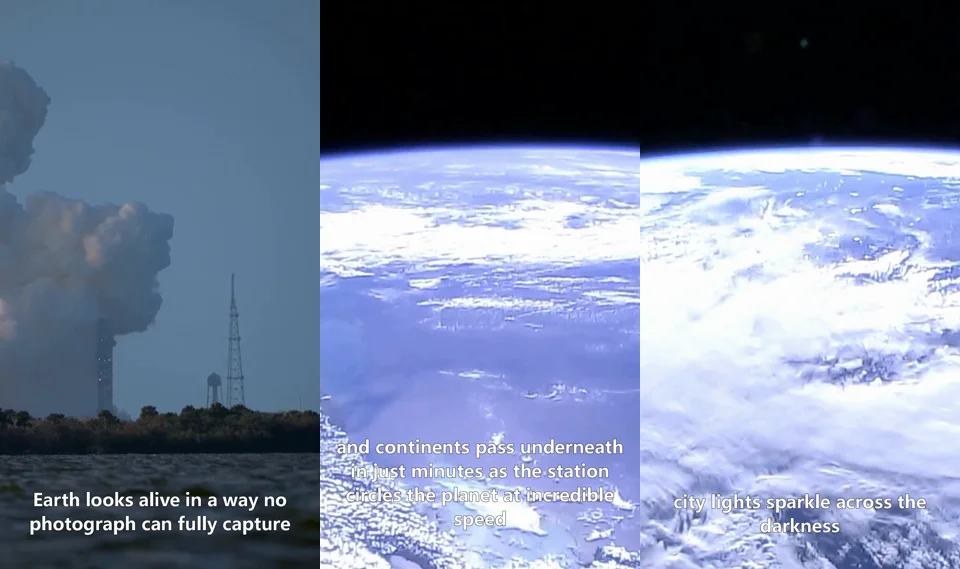
Frames from a 41-second video made on a 2-CPU test VM: script by the LLM gateway, Edge TTS voice, NASA footage.
## Make your first video
Open `https://my-moneyprinterturbo.exe.xyz/` and sign in to exe.dev if
asked. A short tour points at **Settings**; the AI model is already set up
there (OpenAI, through exe.dev's gateway).
1. **Footage.** Click **Settings → Material Source Settings** and paste a
free [Pexels API key](https://www.pexels.com/api/) (or a
[Pixabay](https://pixabay.com/api/docs/) one). Skip this if Shelley
already added yours. No key? Choose **Local** as the video source and
upload your own clips instead.
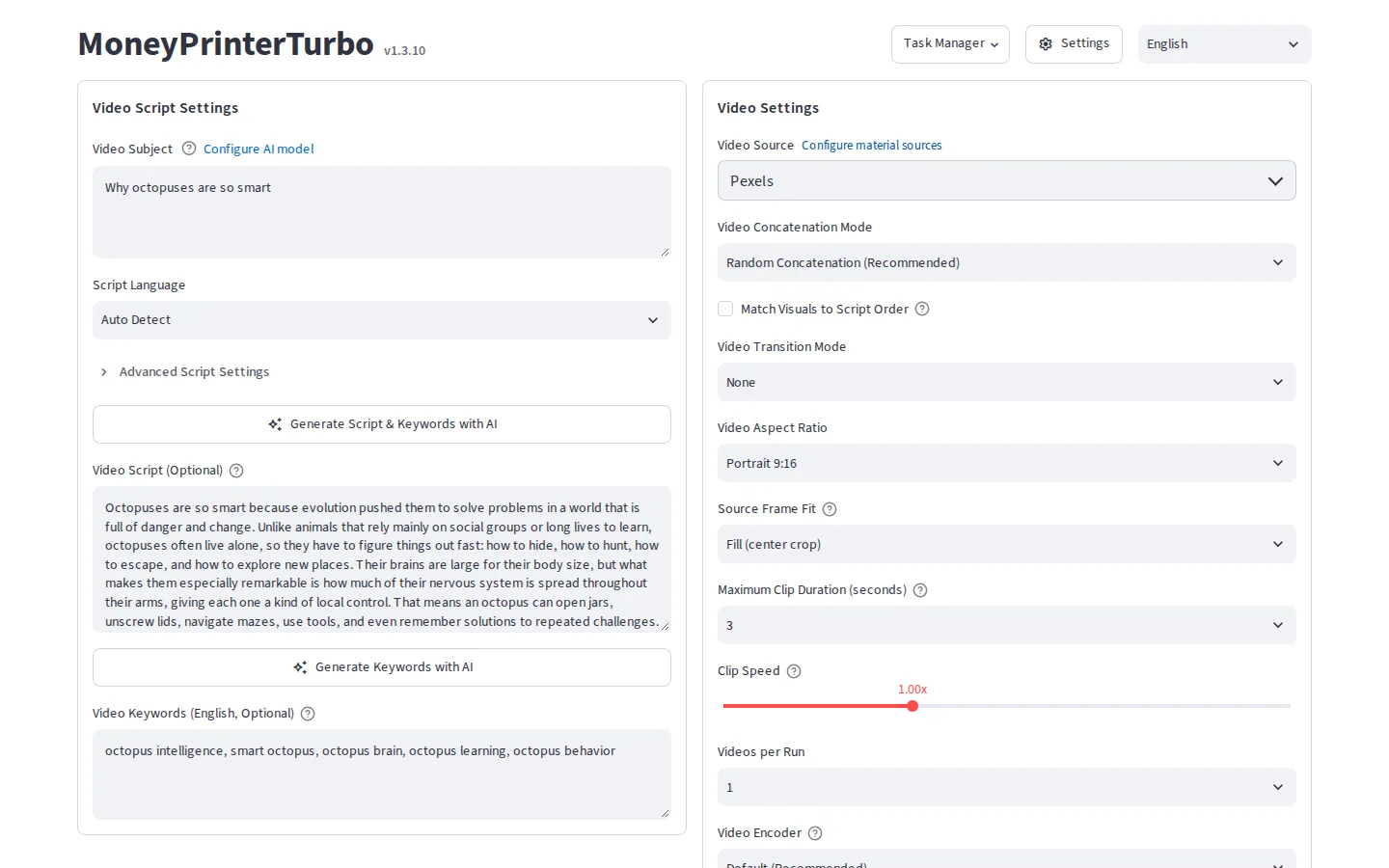
2. **Script.** Type a subject, such as "Why octopuses are so smart", and
click **Generate Script & Keywords with AI**. In a few seconds you get a
script and English search terms for the footage. Edit either one.
3. **Voice.** In the audio settings, keep the **Azure TTS V1** server, which
is Edge TTS: free, with no key. Pick a voice in your script's language,
such as `en-US-AvaNeural` or `en-US-AndrewNeural`, and play the sample.
4. **Music.** Pick one of the bundled background tracks, upload your own
under **Background Music**, or turn it off.
5. Click **Generate Video** at the bottom. The log shows each stage. Rendering
takes minutes: about 8½ for a 41-second portrait video on the default VM.
A script and search terms from exe.dev's LLM gateway, a few seconds after clicking the button.
The finished video plays in the page, and every run is listed under **Task
Manager**, including ones started from the API. The files are on the VM in
`~/moneyprinterturbo/storage/tasks//`: `final-1.mp4` is the video,
next to its script, voiceover and subtitles. To copy one to your computer:
```bash
scp my-moneyprinterturbo.exe.xyz:moneyprinterturbo/storage/tasks//final-1.mp4 .
```
The render runs on the VM, so you can close the tab and come back later.
## Footage and voices
**Footage** is the one thing you need a key for. MoneyPrinterTurbo searches
Pexels, Pixabay or Coverr with the AI's search terms and downloads matching
clips. Pexels and Pixabay keys are free with an account; add several and it
rotates through them. The keys live in `~/moneyprinterturbo/config.toml`
(mode 600), not in an exe.dev integration, because MoneyPrinterTurbo calls
`api.pexels.com` directly and has no setting for another address. A Pexels
key can only search Pexels, so this is a small risk, but anyone you share
the VM with can read it in **Settings**. Your own clips work with no key at
all: choose **Local** and upload them. AI-generated footage (Seedance,
MiniMax and others) is there too, with those providers' paid keys.
**Voices**: Edge TTS (**Azure TTS V1** in the WebUI) is free and needs no
key; it is the voice Microsoft Edge reads pages aloud with, and
MoneyPrinterTurbo uses it unofficially. Azure Speech (**Azure TTS V2**),
ElevenLabs, Gemini, MiniMax and others need their own keys. Kokoro and
Chatterbox are open models you can run yourself. Subtitles come from the
voice's timestamps by default, which needs no GPU.
**Rights.** The software's MIT license doesn't cover what goes into your
video:
- Pexels and Pixabay footage is free to use, commercially too, under
their licenses: don't resell clips unaltered, and take care with
recognizable people, logos and trademarks.
- Edge TTS has no license for this use. For commercial work, use a voice
service whose terms you've accepted.
- Platforms ask you to label realistic AI-generated content, and they
demote mass-produced, repetitive videos. Review what you post.
## Use the API
The API is the same engine with no browser: everything the WebUI does,
as JSON. Its interactive docs are at
`https://my-moneyprinterturbo.exe.xyz:8080/docs` behind your exe.dev login,
and tasks started there show up in the WebUI's **Task Manager**.
From a script on your computer (or n8n, or CI), exe.dev's proxy needs a
[VM token](/docs/https-tokens-for-vms) instead of a browser login. On your
computer:
```bash
TOKEN=$(ssh exe.dev ssh-key generate-api-key --vm=my-moneyprinterturbo --label=mpt --exp=90d --json | jq -r .token)
```
Keep the token (it starts with `exe1.`) like a password: until it expires,
it reaches every web port of this VM as you, and only this VM.
Then start a video and check on it:
```bash
API=https://my-moneyprinterturbo.exe.xyz:8080/api/v1
curl -fsS "$API/videos" -H "X-Exedev-Authorization: Bearer $TOKEN" \
-H 'Content-Type: application/json' -d '{
"video_subject": "Three facts about honeybees",
"video_language": "en-US",
"video_aspect": "9:16",
"video_source": "pexels",
"voice_name": "en-US-AvaNeural-Female",
"bgm_type": ""
}'
# {"status":200,"message":"success","data":{"task_id":"1053fd5f-..."}}
curl -fsS "$API/tasks/" -H "X-Exedev-Authorization: Bearer $TOKEN"
```
`state` is `4` while it runs, `1` when it's done and `-1` if it failed.
When it's done, `videos` lists the file, which you download with the same
header: `https://my-moneyprinterturbo.exe.xyz:8080/tasks//final-1.mp4`.
The API keeps task status in memory, so after a restart it answers `404`
for older tasks; their files are still there, and a render that was
running is lost.
Set `voice_name` (the API's own examples use Chinese voices) and
`bgm_type` (`""` for no music, `"random"` for the bundled songs). The
full list of fields is in `/docs` under `POST /api/v1/videos`.
Tools that only do Basic auth can send the token as the password, with any
user name. MoneyPrinterTurbo also has its own `x-api-key` check (`api_key`
under `[app]` in config.toml). You don't need it here: the proxy already
turns away anyone without access to the VM.
### A video every morning
[`next-video`](https://exe-staging.dev/deploy/moneyprinterturbo/next-video) is a
short script for the VM: it takes the first line of
`~/moneyprinterturbo/topics.txt`, starts a video through the local API with
the settings in `~/moneyprinterturbo/video.json`, removes the topic from the
list, waits for the render, and emails you the link with exe.dev's
[email](/docs/send-email). On the VM, install it with a list of topics and
your settings:
```bash
mkdir -p ~/.local/bin
curl -fsSL https://exe-staging.dev/deploy/moneyprinterturbo/next-video -o ~/.local/bin/next-video
chmod +x ~/.local/bin/next-video
cd ~/moneyprinterturbo
printf '%s\n' "How a rocket reaches orbit" "Why the sky is blue" >> topics.txt
cat > video.json <<'EOF'
{
"video_language": "en-US",
"video_aspect": "9:16",
"video_source": "pexels",
"voice_name": "en-US-AndrewNeural-Male",
"bgm_type": "",
"paragraph_number": 1
}
EOF
```
Then a systemd timer runs it every day at 06:00 UTC, and catches up after
the VM was off:
```bash
sudo tee /etc/systemd/system/next-video.service >/dev/null <<'EOF'
[Unit]
Description=MoneyPrinterTurbo: make the next video in topics.txt
After=docker.service
[Service]
Type=oneshot
User=exedev
ExecStart=/home/exedev/.local/bin/next-video
EOF
sudo tee /etc/systemd/system/next-video.timer >/dev/null <<'EOF'
[Unit]
Description=Make a MoneyPrinterTurbo video every morning
[Timer]
OnCalendar=*-*-* 06:00:00 UTC
Persistent=true
[Install]
WantedBy=timers.target
EOF
sudo systemctl daemon-reload
sudo systemctl enable --now next-video.timer
```
Run one now to check it, and follow along:
```bash
sudo systemctl start --no-block next-video.service
journalctl -fu next-video
```
It prints the task ID, then `next-video: New video: ` when the render
is done, and the email arrives. For more than one a day, add `OnCalendar=`
lines; the API queues what it can't start yet. For a one-off batch without
the API, the command line takes a JSON list of up to 100 videos:
`docker compose exec api python3 cli.py --batch-file storage/tasks.json`
(see `python3 cli.py --help`).
## Share it
On your computer, share the VM with someone:
```bash
ssh exe.dev share add my-moneyprinterturbo teammate@example.com
```
They sign in to exe.dev and get the same WebUI, the same task list and the
same settings, keys included; there are no separate accounts. Their scripts
use your LLM allocation. `share remove` takes access away again.
> [!WARNING]
> Don't run `share set-public` on this VM. The WebUI has no password, so
> anyone could make videos on your CPU and LLM allocation, read your keys,
> and delete your videos. To publish a video, download it and post it.
## Size the VM
Rendering is CPU work. On the default VM (2 CPUs, 8 GB), a 41-second
1080×1920 video from eight source clips took about 8½ minutes:
15 seconds for the script and voice, 4½ minutes to cut and scale the clips,
a minute to join them, and 3 minutes for the final pass with subtitles and
audio. Footage downloads add a little with Pexels.
More CPUs barely speed up one video: the same video took about 7¾ minutes
on 4 CPUs, because MoneyPrinterTurbo prepares the clips one at a time. They
help when you render several videos at once, such as a batch or a team
sharing the VM:
`ssh exe.dev resize my-moneyprinterturbo --cpu=4 --memory=16GB`.
The image takes 3 GB of disk, and each finished video about 10-20 MB plus
its intermediate files. Local Whisper subtitles download a 1.6-3 GB model
and are much slower on a CPU; the default subtitles need neither.
Install by hand
### Create the VM
On your computer, create a VM (pick any free name; this page uses
`my-moneyprinterturbo`):
```bash
ssh exe.dev new --name=my-moneyprinterturbo
ssh my-moneyprinterturbo.exe.xyz
```
### Install MoneyPrinterTurbo
On the VM, turn Docker on at boot, then fetch the example configuration
for the release this page was tested with:
```bash
sudo systemctl enable --now docker.service
mkdir -p ~/moneyprinterturbo/storage && cd ~/moneyprinterturbo
[ -f config.toml ] || curl -fsSL https://raw.githubusercontent.com/harry0703/MoneyPrinterTurbo/v1.3.10/config.example.toml -o config.toml
chmod 600 config.toml
```
The Compose file is upstream's `docker-compose.release.yml`, with the image
pinned (upstream's `latest` follows the main branch, not the latest
release) and the WebUI on port 8000, so it's the VM's main address. Both
ports listen only on 127.0.0.1, where exe.dev's [proxy](/docs/proxy)
reaches them:
```bash
cat > compose.yaml <<'EOF'
x-moneyprinterturbo: &mpt
image: ghcr.io/harry0703/moneyprinterturbo:1.3.10
restart: unless-stopped
volumes:
- ./config.toml:/MoneyPrinterTurbo/config.toml
- ./storage:/MoneyPrinterTurbo/storage
services:
webui:
<<: *mpt
container_name: moneyprinterturbo-webui
ports:
- "127.0.0.1:8000:8501"
command: ["streamlit", "run", "./webui/Main.py", "--server.address=0.0.0.0", "--server.port=8501", "--server.headless=true", "--browser.gatherUsageStats=false", "--client.toolbarMode=minimal", "--server.showEmailPrompt=false"]
api:
<<: *mpt
container_name: moneyprinterturbo-api
ports:
- "127.0.0.1:8080:8080"
command: ["python3", "main.py"]
EOF
```
### Use exe.dev's LLM gateway
The example configuration picks Moonshot's Kimi API, which needs a key.
Switch it to the OpenAI provider pointed at the gateway. The gateway
ignores the key, but MoneyPrinterTurbo wants one, so it gets a placeholder:
```bash
sed -i \
-e 's|^llm_provider = "moonshot"|llm_provider = "openai"|' \
-e 's|^openai_api_key = ""|openai_api_key = "exe-dev-gateway"|' \
-e 's|^openai_base_url = ""|openai_base_url = "https://llm.int.exe.xyz/v1"|' \
-e 's|^openai_model_name = ""|openai_model_name = "gpt-5.4-mini"|' \
config.toml
grep -E '^(llm_provider|openai_(api_key|base_url|model_name)) ' config.toml
```
The last command prints the four lines with their new values.
`curl -s https://llm.int.exe.xyz/v1/models | jq -r '.data[].id'` lists the
other models you can use, such as `fireworks/kimi-k3` or
`fireworks/glm-5p3-flash`.
If you have a Pexels key, add it now (or later in the WebUI):
```bash
PEXELS_API_KEY=paste-your-key-here
sed -i "s|^pexels_api_keys = \[\]|pexels_api_keys = [\"$PEXELS_API_KEY\"]|" config.toml
grep '^pexels_api_keys' config.toml
```
### Start it
```bash
docker compose up -d
sleep 15
docker compose ps
curl -s -o /dev/null -w 'WebUI %{http_code}\n' http://127.0.0.1:8000/_stcore/health
curl -s -o /dev/null -w 'API %{http_code}\n' http://127.0.0.1:8080/docs
```
The first `up` pulls the 3 GB image. Both containers should be `Up`, and
both checks print `200`. Check that the gateway writes a script, through
the API:
```bash
curl -fsS http://127.0.0.1:8080/api/v1/scripts -H 'Content-Type: application/json' \
-d '{"video_subject": "Why octopuses are so smart", "paragraph_number": 1}' | jq -r .data.video_script
```
A paragraph about octopuses means it works. Then open
`https://my-moneyprinterturbo.exe.xyz/`.
Back up and restore
Everything is in `~/moneyprinterturbo`: `config.toml` (your keys and
settings), `compose.yaml`, and `storage/` (videos, uploaded clips and
music, the task list, the footage cache). The containers write as root,
so use `sudo`. On the VM:
```bash
cd ~ && sudo tar -czf mpt-backup-$(date +%F).tar.gz moneyprinterturbo
```
Copy it off the VM from your computer:
```bash
scp my-moneyprinterturbo.exe.xyz:mpt-backup-*.tar.gz .
```
To leave out the footage cache, which re-downloads on its own, add
`--exclude=moneyprinterturbo/storage/cache_videos`. To restore, on a VM
set up as above:
```bash
cd ~/moneyprinterturbo && docker compose down
cd ~ && sudo tar -xzf mpt-backup-2026-11-19.tar.gz
cd ~/moneyprinterturbo && docker compose up -d
```
The old videos show up again in **Task Manager**.
Update
Read the [release notes](https://github.com/harry0703/MoneyPrinterTurbo/releases),
back up, then change the tag and restart. On the VM:
```bash
cd ~/moneyprinterturbo
sed -i 's|moneyprinterturbo:1.3.10|moneyprinterturbo:1.3.11|' compose.yaml
docker compose pull && docker compose up -d
```
New settings appear in the WebUI with their defaults; your `config.toml`
is kept. Compare it with the new release's `config.example.toml` if a
feature needs a setting the WebUI doesn't show.
## Notes for the Chinese defaults
MoneyPrinterTurbo is made in China and its defaults show it. None of them
get in the way here, but they explain what you'll see:
- The main README is in Chinese; `README-en.md` is the English one, and the
WebUI follows your browser's language.
- The example config uses Moonshot (Kimi) for scripts, and the API's
examples use Chinese voices such as `zh-CN-XiaoxiaoNeural`. This recipe
uses the gateway and English voices instead. Kimi K3 is on the gateway
as `fireworks/kimi-k3` if you want it.
- Building the image yourself (`docker compose up` in a clone) installs
packages from Alibaba Cloud and Tsinghua mirrors first. The prebuilt
GHCR image used here was built with the default Debian and PyPI mirrors.
- Many of the listed LLM, voice and AI-video providers are Chinese
services, and several are sponsors. You need none of them.
- The default subtitle fonts are Chinese fonts that also cover Latin
letters.
## Troubleshooting
- **"pexels_api_keys is not set"**, or the video fails at the materials
stage: add a Pexels key in **Settings → Material Source Settings**, or
switch the video source to **Local**. If a key was added in the WebUI
but the API still fails, restart the API, which reads `config.toml` only
when it starts: `docker compose restart api`.
- **The script fails with an authentication or model error**: check
**Settings → LLM Settings → OpenAI** shows base URL
`https://llm.int.exe.xyz/v1` and a model that
`curl -s https://llm.int.exe.xyz/v1/models` lists. `docker compose logs api`
(or the WebUI's log) shows the gateway's reply.
- **No voice, or an Edge TTS timeout**: Microsoft's service is occasionally
slow; generate again. The voice must match the script's language.
- **A blank page or "Connecting" forever**: the WebUI is restarting or
still starting. `docker compose ps` and `docker compose logs webui`.
- **It's slow**: see [Size the VM](#size-the-vm). One render at a time
uses the CPUs fully; several at once each take longer.
- **After a reboot nothing answers**: `systemctl is-enabled docker`
should say `enabled`; if not, `sudo systemctl enable --now docker.service`.
- **Permission denied reading files in `storage/`**: the containers write
as root. Use `sudo`, or copy `final-*.mp4`, which everyone can read.
## Frequently asked questions
### Is MoneyPrinterTurbo free?
Yes, it's MIT-licensed. On exe.dev you pay for the [VM](https://exe.dev/pricing); scripts use your [LLM allocation](/docs/integrations-llm), a few thousand tokens per video. Pexels and Pixabay keys are free, and Edge TTS needs no key. Paid voices, AI-generated footage and music are optional.
### Do I need a GPU?
No. The script and voice come from online services, and ffmpeg renders on the CPU. A 41-second 1080×1920 video took about 8½ minutes on the default 2-CPU VM. A GPU only matters for local Whisper subtitles or heavy batches.
### Which AI model writes the scripts?
Any model exe.dev's gateway serves through OpenAI's API: GPT, Kimi, GLM, DeepSeek, Grok and more. This recipe sets `gpt-5.4-mini`; change it in **Settings → LLM Settings → OpenAI**. To use your own OpenAI key or ChatGPT plan, point your [LLM integration](/docs/integrations-llm) at it; MoneyPrinterTurbo doesn't change.
### Can I use the videos commercially?
The software is MIT, but the footage and voice each have their own terms. Pexels and Pixabay clips are free to use, with rules (no reselling unaltered clips, care with recognizable people and brands). Edge TTS is Microsoft's browser read-aloud voice, used unofficially; for commercial work, Azure Speech or ElevenLabs have clear licenses. See [Footage and voices](#footage-and-voices).
### Can I publish straight to TikTok, YouTube or Instagram?
MoneyPrinterTurbo can, through the third-party Upload-Post service (**Settings → Auto-Publish Settings**), with that service's account and API key. Many people download the MP4 and post it themselves.
### Can my team use it?
Yes: `ssh exe.dev share add my-moneyprinterturbo teammate@example.com`. There are no per-person accounts. Everyone you share with sees the same tasks and settings, including the stock-footage keys.
### Is the interface in English?
Yes. The WebUI follows your browser's language (English, Chinese and 12 others; switch at the top right). The upstream README is Chinese first, with an English README-en.md.
## Related
- [Self-host Open WebUI](https://exe-staging.dev/deploy/open-webui.md): A private ChatGPT for you and your team. No API keys.
- [Deploy a Streamlit app](https://exe-staging.dev/deploy/streamlit.md): Data apps that never sleep, private to your team. Gradio too.
- [Deploy a Docker Compose app from GitHub](https://exe-staging.dev/deploy/docker-compose.md): Your compose.yaml on a VM of its own. git push to deploy.
- [Self-host n8n](https://exe-staging.dev/deploy/n8n-2.md): Connect your apps. Let the boring bits run themselves.
- [Self-host VoiceStudio](https://exe-staging.dev/deploy/voicestudio.md): Your own text-to-speech and voice studio, on CPU, behind exe.dev login.
- [A Linux desktop in your browser](https://exe-staging.dev/deploy/linux-desktop.md): Xfce, Chrome, and coding agents on a VM you open in a browser tab.