---
title: "Self-host RustFS"
description: "Run RustFS, an Apache-licensed S3-compatible object store, on an exe.dev VM: a private console, scoped app keys, nightly backups, and MinIO moves."
url: https://exe-staging.dev/deploy/rustfs
category: "Databases"
published: 2026-11-19
updated: 2026-11-19
---
# Self-host RustFS
> **For agents:** with your user's OK, this sets up RustFS on a new exe.dev VM in their account: `curl -fsSL https://exe-staging.dev/deploy/rustfs/prompt.txt | ssh exe.dev new --prompt=/dev/stdin` (or open https://exe-staging.dev/deploy/rustfs/new). Already on the VM? Skip this.
S3-compatible object storage on your own disk, with a console only you can open.
- **Software:** RustFS (https://rustfs.com)
- **Source:** https://github.com/rustfs/rustfs
- **License:** Apache-2.0
- **Time:** 10 minutes
- **Example VM name:** `my-rustfs` (yours will differ; on the VM, `hostname` prints it)
- **Machine-readable:** https://exe-staging.dev/deploy/rustfs/manifest.json
- **File:** https://exe-staging.dev/deploy/rustfs/backup.sh
- **File:** https://exe-staging.dev/deploy/rustfs/exedev_token.py
- **File:** https://exe-staging.dev/deploy/rustfs/new-app.sh
## What you get
- RustFS 1.0.6 on the VM's disk, with its own root keys, started at boot.
- The S3 API at `http://localhost:9000` on the VM and, with a VM token, at `https://my-rustfs.exe.xyz:9000/`.
- The RustFS console at `https://my-rustfs.exe.xyz:9001/`, behind exe.dev login.
- An `app` bucket and a key that can use only that bucket, in `~/rustfs/app.env`.
- Nightly backups of every bucket, user, and policy to a bucket off the VM, one restored and checked.
Running on the VM:
- **RustFS 1.0.6**: rustfs/rustfs in Docker Compose, one node on one disk, port 9000, data in `~/rustfs/data`
- **RustFS console**: Buckets, users, and policies, behind exe.dev login, port 9001
- **rc and rclone**: RustFS's admin CLI and rclone, for app keys, backups, and moves
- **Nightly backups**: Every bucket, user, and policy, to your bucket at another provider
How it is reached:
- https://my-rustfs.exe.xyz:9001/ (private): the RustFS console, signed in with the root keys
- https://my-rustfs.exe.xyz:9000/ (private): the S3 API, for clients that send a VM token
## Deploy with Shelley
Open https://exe-staging.dev/deploy/rustfs/new to create a VM whose agent, Shelley, follows this recipe. From a terminal:
```sh
curl -fsSL https://exe-staging.dev/deploy/rustfs/prompt.txt | ssh exe.dev new --prompt=/dev/stdin
```
Then, on your own computer:
```sh
ssh exe.dev ssh-key generate-api-key --vm=my-rustfs --label=s3 --exp=90d
ssh -N -L 9000:localhost:9000 my-rustfs.exe.xyz
```
Or follow the steps below by hand.
RustFS is an S3-compatible object store written in Rust, under the Apache
license: point any S3 client or SDK at it and it behaves like a bucket on
Amazon S3. Here it runs on an exe.dev VM's own disk, so files survive
restarts and reboots, and both the console and the S3 API stay behind
exe.dev's login until you decide otherwise. Apps on the VM use it over
`localhost`; your laptop and scripts get in with a VM token or an SSH
tunnel. Shelley, the agent on the VM, sets it all up and can later make
app keys, apply updates, or restore a file for you. For how it compares
with [Garage](/deploy/garage) and [SeaweedFS](/deploy/seaweedfs), see
[self-hosted S3 storage](/deploy/s3-storage#choose-one).
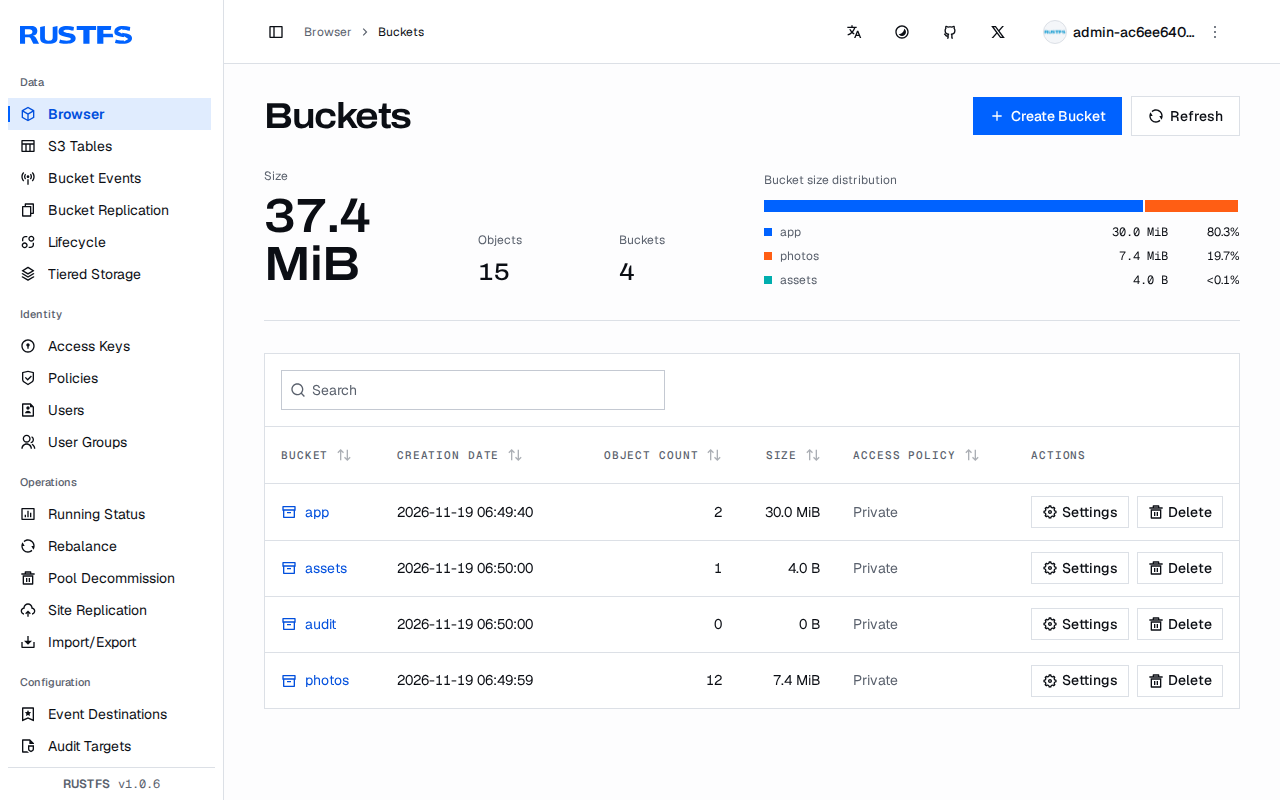
The RustFS console at port 9001, after exe.dev's login and RustFS's own.
## Open the console
When Shelley finishes, open `https://my-rustfs.exe.xyz:9001/`. exe.dev
asks you to sign in first; then RustFS asks for its own keys. They're
the root keys, in `~/rustfs/.env` on the VM:
```bash
ssh my-rustfs.exe.xyz cat rustfs/.env
```
The console creates buckets, uploads and downloads files, and manages
users, policies, versioning, and lifecycle rules. It is private because
every port of the VM is: only you, and people you [share the
VM](/docs/sharing) with, reach it, and they still need RustFS keys.
Port 9001 serves the S3 API too, so never make it the public port.
## Connect an app on this VM
Your app's bucket is called `app`, and its key can use only that bucket.
The settings are in `~/rustfs/app.env`, readable only by you:
```text
AWS_ENDPOINT_URL=http://localhost:9000
AWS_REGION=us-east-1
AWS_ACCESS_KEY_ID=app
AWS_SECRET_ACCESS_KEY=
S3_BUCKET=app
```
Recent AWS SDKs and the `aws` command read these variables as they are.
Other libraries want the same values under their own names: endpoint
`http://localhost:9000`, region `us-east-1`, and **path-style** addressing
(`forcePathStyle: true` in JavaScript, `use_path_style_endpoint` in PHP,
`force_path_style` in Ruby). In Python:
```python
import boto3
s3 = boto3.client("s3") # reads AWS_ENDPOINT_URL and the keys from the environment
s3.upload_file("report.pdf", "app", "reports/2026/report.pdf")
print(s3.list_objects_v2(Bucket="app")["KeyCount"])
```
A second app gets a bucket and key of its own. On the VM:
```bash
~/rustfs/new-app.sh photos
cat ~/rustfs/photos.env
```
[new-app.sh](https://exe-staging.dev/deploy/rustfs/new-app.sh) creates the
bucket, a policy allowing only that bucket, and a user with a random
secret, and writes `photos.env`. The nightly backup picks the bucket up.
**In a Docker container on the VM?** `localhost` is the container
itself. Give the service in your [Compose file](/deploy/docker-compose)
`extra_hosts: ["host.docker.internal:host-gateway"]` and use
`http://host.docker.internal:9000`. Self-hosted apps that take an S3
endpoint, such as [Supabase](/deploy/supabase) or
[Langfuse](/deploy/langfuse), can use it with a key from `new-app.sh`;
we haven't tested those pairings.
## Reach it from your computer
The S3 API is at `https://my-rustfs.exe.xyz:9000/`, and like the console
it's private: exe.dev answers `401` until a request proves it's you. S3
keys can't do that, because S3 clients put their own signature in the
`Authorization` header. There are two ways in; [where clients connect
from](/deploy/s3-storage#where-clients-connect-from) compares them with
the public port.
### An SSH tunnel
The simplest, and every S3 client works unchanged. On your computer:
```bash
ssh -N -L 9000:localhost:9000 my-rustfs.exe.xyz
```
While it runs, use the endpoint `http://localhost:9000` with any client,
and `http://localhost:9001` opens the console.
### A VM token
For scripts and machines without your SSH key, make a token for this VM.
On your computer:
```bash
mkdir -p ~/.config/exedev
ssh exe.dev ssh-key generate-api-key --vm=my-rustfs --label=s3 --exp=90d > ~/.config/exedev/vm-token
chmod 600 ~/.config/exedev/vm-token
```
The client sends it in an `X-Exedev-Authorization: Bearer `
header, which exe.dev checks and removes before the request reaches
RustFS. The header has to be added **after** the client signs the
request, or RustFS rejects the signature. With rclone, which has a flag
for it:
```bash
rclone config create my-rustfs s3 provider=Other \
endpoint=https://my-rustfs.exe.xyz:9000 \
access_key_id=app secret_access_key=
rclone --header "X-Exedev-Authorization: Bearer $(cat ~/.config/exedev/vm-token)" \
copy ./photos my-rustfs:app/photos
```
With boto3, add the header in the `before-send` event:
```python
from pathlib import Path
import boto3
token = (Path.home() / ".config/exedev/vm-token").read_text().strip()
s3 = boto3.client("s3", endpoint_url="https://my-rustfs.exe.xyz:9000",
aws_access_key_id="app", aws_secret_access_key="",
region_name="us-east-1")
def add_token(request, **kwargs):
request.headers["X-Exedev-Authorization"] = f"Bearer {token}"
s3.meta.events.register("before-send.s3", add_token)
s3.upload_file("backup.tar", "app", "backup.tar")
```
MinIO's `mc` takes the header as
`-H "X-Exedev-Authorization: Bearer $(cat ~/.config/exedev/vm-token)"`,
on `mc alias set` too, since it checks the keys right away.
The `aws` command needs a small plugin,
[exedev_token.py](https://exe-staging.dev/deploy/rustfs/exedev_token.py), which
adds the header to requests for `*.exe.xyz` only, and the classic
transfer client (the newer one skips plugins). On your computer:
```bash
mkdir -p ~/.aws/plugins
curl -fsSL -o ~/.aws/plugins/exedev_token.py https://exe-staging.dev/deploy/rustfs/exedev_token.py
cat >> ~/.aws/config <'
aws --profile my-rustfs s3 ls s3://app/
```
If you already have a `[plugins]` section, add the two lines to it
instead. A 300 MB multipart upload passed with all four clients. Through
exe.dev's proxy it ran at about 13 MB/s up and 30 MB/s down, so for
big one-off moves, copy over the SSH tunnel or run rclone on the VM.
## Make the S3 API public
Presigned URLs opened by a browser, public-read buckets, and apps on
other machines that can't add a header ([Litestream](/deploy/sqlite),
most self-hosted apps) need the S3 port to answer without exe.dev's login. On your
computer:
```bash
ssh exe.dev share port my-rustfs 9000
ssh exe.dev share set-public my-rustfs
```
Now `https://my-rustfs.exe.xyz/` is the S3 API, open to the internet,
with RustFS's keys as the only gate. Anyone without a key gets
`AccessDenied`. The console on port 9001 stays private. exe.dev has one
public port per VM, so this takes the place of a website on port 8000;
[presigned URLs and public files](/deploy/s3-storage#presigned-urls-and-public-files)
covers the trade-offs. Use the endpoint without a port from now on:
```python
url = s3.generate_presigned_url("get_object", Params={"Bucket": "app", "Key": "report.pdf"},
ExpiresIn=3600)
# https://my-rustfs.exe.xyz/app/report.pdf?AWSAccessKeyId=app&...
```
The URL has to be signed for the address the browser will use, so make
the client with `endpoint_url="https://my-rustfs.exe.xyz"`, not
`localhost`. To let anyone read one bucket's files without listing
them, give it a bucket policy. On the VM:
```bash
cat > ~/rustfs/assets-public.json <<'EOF'
{"Version": "2012-10-17",
"Statement": [{"Effect": "Allow", "Principal": {"AWS": ["*"]},
"Action": ["s3:GetObject"], "Resource": ["arn:aws:s3:::assets/*"]}]}
EOF
rc bucket anonymous set-json ~/rustfs/assets-public.json local/assets
```
Now `https://my-rustfs.exe.xyz/assets/logo.png` opens for anyone, while
listing the bucket stays denied. `rc bucket anonymous set download
local/assets` is shorter, but lets anyone list the files too.
To go private again: `ssh exe.dev share set-private my-rustfs`.
**From another exe.dev VM?** VMs share no private network. Use the public
port with a scoped key, a VM token if the client can add headers, or
[Tailscale](/deploy/postgres#connect-from-another-vm) on both VMs with
the endpoint `http://my-rustfs:9000`.
## Versioning and object lock
Turn on versioning for a bucket, and overwritten or deleted files keep
their old versions. On the VM:
```bash
rc bucket version enable local/app
rc bucket lifecycle rule add local/app --noncurrent-expiry-days 30
rc object list --versions local/app/reports/
```
The lifecycle rule deletes old versions after 30 days, so they don't
fill the disk. Object lock goes further: no one, root included, can
delete a locked version until its retention runs out. It has to be
chosen when the bucket is made:
```bash
rc bucket create local/audit --with-lock
rc bucket lock set local/audit --mode governance --days 30
```
The nightly backup copies only each file's current version.
## Move from MinIO
MinIO's open-source server and its `mc` client are archived on GitHub,
and its Docker images are no longer published. RustFS speaks the same API, so
clients only need a new endpoint and keys. The data folder isn't
interchangeable, so copy the buckets. On the RustFS VM, with the old
server reachable (its public URL, or an SSH tunnel to it):
```bash
rclone config create minio s3 provider=Minio endpoint=https://old-minio.example.com \
access_key_id= secret_access_key=
for b in $(rclone lsf --dirs-only minio: | tr -d /); do
rclone mkdir "rustfs:$b"
rclone sync "minio:$b" "rustfs:$b" --checksum --transfers 8
rclone check "minio:$b" "rustfs:$b"
done
```
Then bring the users and their policies across with MinIO's last `mc`
release, which still works against both servers:
```bash
curl -fsSL -o ~/mc https://github.com/minio/mc/releases/download/RELEASE.2025-08-13T08-35-41Z/mc.linux-amd64.RELEASE.2025-08-13T08-35-41Z
chmod +x ~/mc
set -a; . ~/rustfs/.env; set +a
~/mc alias set old https://old-minio.example.com
~/mc alias set new http://localhost:9000 "$RUSTFS_ACCESS_KEY" "$RUSTFS_SECRET_KEY"
~/mc admin cluster iam export old
~/mc admin cluster iam import new old-iam-info.zip
rm old-iam-info.zip
```
In our test, MinIO's users kept their secret keys and their policies, so
apps only change the endpoint. The zip holds those secrets, which is why
it's deleted. Bucket settings (policies, versioning, lifecycle rules)
don't travel with the files: set them again. The [MinIO page](/deploy/minio)
has the timeline, moves to Garage and SeaweedFS, and how to run MinIO
safely in the meantime.
## Keep an eye on it
`curl -s localhost:9000/health` on the VM prints RustFS's version and
status, and the console's **Running Status** page shows the disk and
server. To be told when it stops, point [Uptime Kuma](/deploy/uptime-kuma)
on the same VM at `http://localhost:9000/health/ready`. RustFS has no
Prometheus endpoint to scrape; it can push OpenTelemetry metrics, traces,
and logs to a collector named in `RUSTFS_OBS_ENDPOINT` (not tested here).
Its own log is in `~/rustfs/logs`.
## Keep your data
One VM is one disk, so RustFS keeps a single copy of each file. Every
night, [backup.sh](https://exe-staging.dev/deploy/rustfs/backup.sh) copies every
bucket to **a bucket at another provider**, moves files that changed or
disappeared since the night before into `changed/`, and saves the
users and policies in `iam/`. It keeps 14 days of changes. If the VM
goes away, you lose at most the changes since the last run, and the
backup takes no space on the VM's disk. Keep that bucket's key somewhere besides the VM, such as
your password manager: you need it to restore.
Watch the disk with `df -h /`. RustFS stops taking uploads when it's
full. To grow it, on your computer:
```bash
ssh exe.dev resize my-rustfs --disk=100GB
```
Then on the VM: `sudo resize2fs "$(findmnt -no SOURCE /)"`. RustFS
sees the space at once.
### Get a bucket
Any S3-compatible provider works; Shelley asks for these details. Don't
use a bucket on this VM: a backup into itself is gone with it. [Disk and
backups](/deploy/s3-storage#disk-and-backups) compares the options,
including exe.dev's VM backups.
- **Cloudflare R2** has a free tier and no fees for downloads. Create a
bucket, then an **API token** with *Object Read & Write* on that bucket
only. Note the **Access Key ID**, the **Secret Access Key**, and the
endpoint `https://.r2.cloudflarestorage.com`; the region is
`auto`.
- **Backblaze B2:** create a private bucket and an application key for
it. The endpoint is on the bucket's page, and the region is the part
after `s3.` in it.
- **Amazon S3:** create a bucket and an IAM user whose policy allows only
that bucket. Leave the endpoint empty and give the bucket's region.
- **Another exe.dev VM:** run this page on a second VM, [make its S3 API
public](#make-the-s3-api-public), and make a bucket and key there with
`~/rustfs/new-app.sh backups`. The endpoint is `https://.exe.xyz`
and the region `us-east-1`.
We tested the backup against RustFS on a second VM; R2, B2, and S3 use
the same rclone settings but weren't tested here. Use one empty bucket
per RustFS VM. No bucket yet? Shelley keeps the
backups in `~/rustfs/backups` on the VM until you [add
one](#add-a-bucket-later); they undo mistakes but don't survive losing
the VM, and they double the space your files use.
## The nuts and bolts
Happy clicking Deploy? You can stop here. These are the same setup steps
Shelley follows, plus the maintenance commands for later.
Install by hand
### Create a VM
On your computer (pick another name if `my-rustfs` is taken):
```bash
ssh exe.dev new --name=my-rustfs
ssh my-rustfs.exe.xyz
```
All remaining commands run **on the VM**, as `exedev`. A new VM has a
25 GB disk; `df -h /` shows what's free. Expecting more data than that,
[grow the disk](#keep-your-data) now.
### Start Docker
Docker is installed on exe.dev's image but only starts on demand. Start
it at boot, so RustFS comes back after a restart:
```bash
sudo systemctl enable --now docker.service
docker compose version
```
### Make the root keys
RustFS's built-in keys are `rustfsadmin`/`rustfsadmin`; replace them
before it first starts. This writes random ones to `~/rustfs/.env`,
readable only by you, unless the file is already there:
```bash
mkdir -p ~/rustfs/data ~/rustfs/logs
cd ~/rustfs
[ -e .env ] || (umask 077; cat > .env < ~/rustfs/compose.yaml <<'EOF'
services:
rustfs:
image: rustfs/rustfs:1.0.6
restart: unless-stopped
env_file: .env
environment:
RUSTFS_VOLUMES: /data
RUSTFS_ADDRESS: 0.0.0.0:9000
RUSTFS_CONSOLE_ENABLE: "true"
RUSTFS_CONSOLE_ADDRESS: 0.0.0.0:9001
RUSTFS_CONSOLE_CORS_ALLOWED_ORIGINS: ""
RUSTFS_OBS_LOG_DIRECTORY: /logs
ports:
- "9000:9000"
- "9001:9001"
volumes:
- ./data:/data
- ./logs:/logs
EOF
cd ~/rustfs && docker compose up -d
sleep 5
curl -s localhost:9000/health; echo
curl -s -o /dev/null -w 'console %{http_code}\n' localhost:9001/rustfs/console/
```
Expect `"status":"ok"` with `"version":"1.0.6"`, then `console 200`.
The empty `RUSTFS_CONSOLE_CORS_ALLOWED_ORIGINS` stops other websites'
pages from calling the console's API; the image allows any by default.
Both ports stay behind exe.dev's login, since the VM is private.
### Install rc and rclone
[rc](https://github.com/rustfs/cli) is RustFS's command-line client and
admin tool; [rclone](https://rclone.org) copies buckets for backups and
moves. Install both, pinned and checked:
```bash
cd /tmp
curl -fsSLO https://github.com/rustfs/cli/releases/download/v0.1.38/rustfs-cli-linux-amd64-v0.1.38.tar.gz
curl -fsSLO https://github.com/rustfs/cli/releases/download/v0.1.38/rustfs-cli-linux-amd64-v0.1.38.tar.gz.sha256
sha256sum -c rustfs-cli-linux-amd64-v0.1.38.tar.gz.sha256
tar -xzf rustfs-cli-linux-amd64-v0.1.38.tar.gz
sudo install -m 0755 rc /usr/local/bin/rc
curl -fsSLO https://downloads.rclone.org/v1.76.0/rclone-v1.76.0-linux-amd64.zip
curl -fsSL https://downloads.rclone.org/v1.76.0/SHA256SUMS | grep ' rclone-v1.76.0-linux-amd64.zip$' | sha256sum -c
unzip -q -o rclone-v1.76.0-linux-amd64.zip
sudo install -m 0755 rclone-v1.76.0-linux-amd64/rclone /usr/local/bin/rclone
rc --version; rclone version | head -n 1
```
Give both the root keys. Each saves them in a config file only you can
read (`~/.config/rc/config.toml`, `~/.config/rclone/rclone.conf`):
```bash
set -a; . ~/rustfs/.env; set +a
rc alias set local http://localhost:9000 "$RUSTFS_ACCESS_KEY" "$RUSTFS_SECRET_KEY"
rclone config create rustfs s3 provider=Other endpoint=http://localhost:9000 \
access_key_id="$RUSTFS_ACCESS_KEY" secret_access_key="$RUSTFS_SECRET_KEY" >/dev/null
rc admin info cluster local
```
`rc admin info` should show one online drive.
### Create the app bucket
[new-app.sh](https://exe-staging.dev/deploy/rustfs/new-app.sh) makes a bucket, a
policy that allows only that bucket, a user with a random secret, and an
`.env` file with the settings. Fetch it, read it, and make the `app`
bucket:
```bash
curl -fsSL -o ~/rustfs/new-app.sh https://exe-staging.dev/deploy/rustfs/new-app.sh
chmod +x ~/rustfs/new-app.sh
~/rustfs/new-app.sh app
```
Check that the new key works in its own bucket and nowhere else:
```bash
(set -a; . ~/rustfs/app.env; rc alias set app-check "$AWS_ENDPOINT_URL" "$AWS_ACCESS_KEY_ID" "$AWS_SECRET_ACCESS_KEY")
echo hello | rc pipe app-check/app/hello.txt
rc object show app-check/app/hello.txt
rc bucket create app-check/not-mine || echo "denied, as it should be"
rc object remove app-check/app/hello.txt
rc alias remove app-check
```
Expect `hello`, then an `Access Denied` error and `denied, as it should
be`.
### Give the backups a bucket
The nightly backup goes to a bucket at another provider ([Get a
bucket](#get-a-bucket) lists some). Put its details in a file only you
can read. Run this, then fill in your values with
`nano ~/rustfs/offsite.env`:
```bash
(umask 077; [ -e ~/rustfs/offsite.env ] || cat > ~/rustfs/offsite.env <<'EOF'
OFFSITE_BUCKET=
OFFSITE_ENDPOINT=
OFFSITE_REGION=
OFFSITE_ACCESS_KEY_ID=
OFFSITE_SECRET_ACCESS_KEY=
EOF
)
```
Make it an rclone remote called `offsite`, and check that the bucket
answers and has no backup in it yet:
```bash
set -a; . ~/rustfs/offsite.env; set +a
rclone config create offsite s3 provider="$([ -n "$OFFSITE_ENDPOINT" ] && echo Other || echo AWS)" \
endpoint="$OFFSITE_ENDPOINT" region="$OFFSITE_REGION" \
access_key_id="$OFFSITE_ACCESS_KEY_ID" secret_access_key="$OFFSITE_SECRET_ACCESS_KEY" \
no_check_bucket=true >/dev/null
echo ok | rclone rcat "offsite:$OFFSITE_BUCKET/rustfs-check.txt"
rclone cat "offsite:$OFFSITE_BUCKET/rustfs-check.txt"
rclone deletefile "offsite:$OFFSITE_BUCKET/rustfs-check.txt"
rclone lsf "offsite:$OFFSITE_BUCKET/rustfs/"
```
Expect `ok` and nothing after it. An error means a wrong endpoint,
region, or key: fix `offsite.env` and run it again. If it lists
`current/` or `iam/`, the bucket already holds a RustFS backup; use
another bucket, or see [Restore everything on a new
VM](#restore-everything-on-a-new-vm).
### Set up nightly backups
[backup.sh](https://exe-staging.dev/deploy/rustfs/backup.sh) copies every bucket
to `BACKUP_DEST`, keeps what changed for `KEEP_DAYS`, and exports the
users and policies with `rc`. `BACKUP_DEST` is any rclone path; here it
is the `rustfs/` folder of your bucket:
```bash
curl -fsSL -o ~/rustfs/backup.sh https://exe-staging.dev/deploy/rustfs/backup.sh
chmod +x ~/rustfs/backup.sh
[ -e ~/rustfs/backup.env ] || cat > ~/rustfs/backup.env < ~/rustfs/backup.env
cat ~/rustfs/backup.env
```
Schedule it, then take a first backup:
```bash
sudo tee /etc/systemd/system/rustfs-backup.service >/dev/null </dev/null <<'EOF'
[Unit]
Description=Back up RustFS every night
[Timer]
OnCalendar=*-*-* 03:30:00
RandomizedDelaySec=30m
Persistent=true
[Install]
WantedBy=timers.target
EOF
sudo systemctl daemon-reload
sudo systemctl enable --now rustfs-backup.timer
sudo systemctl start rustfs-backup.service
systemctl list-timers rustfs-backup.timer
. ~/rustfs/backup.env; rclone lsf "$BACKUP_DEST" && rclone lsf "$BACKUP_DEST/iam"
```
Expect a next run time, the folders `env/` and `iam/` (and `current/`
once a bucket holds files), and a zip named for today's date and time. For failures: `journalctl -u rustfs-backup.service`.
### Test a backup
Put a file in the `app` bucket, back up, then restore the bucket from the
backup into a **scratch bucket** and compare the two:
```bash
head -c 20M /dev/urandom > /tmp/restore-test.bin
rclone copy /tmp/restore-test.bin rustfs:app/restore-test/
~/rustfs/backup.sh
. ~/rustfs/backup.env
rclone copy "$BACKUP_DEST/current/app" rustfs:restore-scratch
rclone check rustfs:app rustfs:restore-scratch
(umask 077; rclone copyto "$BACKUP_DEST/iam/$(rclone lsf "$BACKUP_DEST/iam" | sort | tail -n 1)" /tmp/iam-test.zip)
unzip -l /tmp/iam-test.zip | grep -c json
```
Expect `0 differences found` and a count of a few JSON files (users,
policies, groups). Remove only the scratch bucket and the test file:
```bash
rclone purge rustfs:restore-scratch
rclone delete rustfs:app/restore-test/
rm /tmp/restore-test.bin /tmp/iam-test.zip
rc bucket list local
```
`rc bucket list` should show only `app`. Installation done; continue
with [Open the console](#open-the-console).
Back up and restore
On the VM, `~/rustfs/backup.sh` takes an extra backup. In
`BACKUP_DEST` you find:
- `current//`: every bucket as plain files, as of the last run.
- `changed///`: files that were replaced or deleted that
night, kept for `KEEP_DAYS`.
- `iam/iam--Update RustFS
Read the [release notes](https://github.com/rustfs/rustfs/releases) for
the versions you're skipping. Take a backup, change the tag in
`compose.yaml`, and restart. On the VM:
```bash
~/rustfs/backup.sh
cd ~/rustfs
sed -i 's|rustfs/rustfs:1.0.6|rustfs/rustfs:1.0.7|' compose.yaml
docker compose pull && docker compose up -d
sleep 5; curl -s localhost:9000/health; echo
```
The health line shows the new version. Uploads fail for the few seconds
RustFS restarts; S3 clients retry. Going back is the same with the old
tag. Update rc and rclone the same way you installed them, with the new
version in the URLs.
Something not working?
On the VM, RustFS's own view usually explains it:
```bash
cd ~/rustfs && docker compose ps && docker compose logs --tail 50
curl -s localhost:9000/health; echo
```
- **`401 Unauthorized` from `https://my-rustfs.exe.xyz:9000`:** that's
exe.dev, not RustFS. The client didn't send a VM token, or it expired.
Test the token with
`curl -s -o /dev/null -w '%{http_code}\n' -H "X-Exedev-Authorization: Bearer $(cat ~/.config/exedev/vm-token)" https://my-rustfs.exe.xyz:9000/health`,
which should print `200`.
- **`aws s3api` works but `aws s3 cp` gets `401`:** the newer transfer
client skips plugins. Set `preferred_transfer_client = classic` as in
[A VM token](#a-vm-token).
- **`SignatureDoesNotMatch`:** the request was signed for another
address than the one it reached (a presigned URL made with `localhost`
but opened at `my-rustfs.exe.xyz`), or the token header was added
before signing (boto3's `before-sign` event instead of `before-send`).
- **`AccessDenied`:** the key's policy doesn't allow it. App keys from
`new-app.sh` can use only their own bucket; that's on purpose.
- **The container restarts over and over, with `Permission denied`:**
the data or log folder isn't owned by RustFS's user. Run
`sudo chown -R 10001:10001 ~/rustfs/data ~/rustfs/logs`.
- **`Detected default root credentials` in the log:** RustFS started
without `~/rustfs/.env` and uses `rustfsadmin`. Make the keys as in
[Make the root keys](#make-the-root-keys) and `docker compose up -d`.
- **`InvalidBucketName`:** bucket names are 3 to 63 characters of
lowercase letters, digits, dots, and dashes.
- **The console won't sign in:** use the root keys from `~/rustfs/.env`
(or another user's keys), at `https://my-rustfs.exe.xyz:9001/`.
- **RustFS isn't running after a reboot:** `docker.service` isn't
enabled. Run `sudo systemctl enable --now docker.service`.
- **Disk full:** uploads fail. Check `df -h /` and `du -sh ~/rustfs/*`,
then [grow the disk](#keep-your-data). Backups still on the VM? [Move
them to a bucket](#add-a-bucket-later).
- **The backup fails with `AccessDenied` or `403` from the bucket:** the
key in `~/rustfs/offsite.env` can't write that bucket, or the endpoint
or region is wrong. `journalctl -u rustfs-backup.service` shows the
failing call; fix the file and run both blocks of [Give the backups a
bucket](#give-the-backups-a-bucket) again.
## Frequently asked questions
### Is RustFS ready for production?
RustFS 1.0 shipped in September 2026, and 1.0.6 is the version tested here. This page runs one server on one disk, which RustFS's own docs recommend for development, testing, and small, non-critical workloads: there is no second copy of anything until a backup runs. That's why the [nightly backups](#keep-your-data) go to a bucket off the VM.
### Can I use it as a MinIO replacement?
For clients, yes: the AWS SDKs, `aws`, rclone, and MinIO's `mc` all worked against it, including `mc admin` for users and policies. MinIO's data folder can't be reused, so [copy the buckets](#move-from-minio) with rclone and import MinIO's users with `mc`.
### Can a browser open a presigned URL?
Only if the S3 port is public. exe.dev keeps every port behind its login until you [make the S3 API public](#make-the-s3-api-public); then presigned URLs and public-read buckets work, and S3 keys are the only gate.
### How much can I store?
As much as the VM's disk holds; the backups live elsewhere. Grow the disk any time with `ssh exe.dev resize my-rustfs --disk=100GB` and `resize2fs`; see [Keep your data](#keep-your-data).
### Can I add more disks or nodes later?
Not to this setup. A single-disk RustFS can't be grown into a multi-disk or multi-node cluster in place, and one exe.dev VM is one node anyway. Grow the disk instead, or copy the buckets to a new deployment with rclone.
### Can people sign in to the console with their exe.dev account?
Not instead of RustFS's keys. exe.dev's login sits in front of the console, so only people you [share the VM](/docs/sharing) with reach it, and RustFS then asks for its own keys. Give each teammate a RustFS user of their own in the console's **Users** page.
### Is RustFS free?
Yes, under the Apache License 2.0, and so are rc and rclone. You pay for the VM; see [exe.dev plans](https://exe.dev/pricing).
## Related
- [Self-hosted S3 storage](https://exe-staging.dev/deploy/s3-storage.md): Your own S3 bucket on a real disk. RustFS, Garage or SeaweedFS, tested.
- [MinIO is archived. Here's what to do](https://exe-staging.dev/deploy/minio.md): The open-source server is archived. Copy your buckets and keys somewhere maintained.
- [Self-host Garage S3 storage](https://exe-staging.dev/deploy/garage.md): Small, S3-compatible object storage on a disk you own, private by default.
- [Self-host SeaweedFS](https://exe-staging.dev/deploy/seaweedfs.md): S3-compatible object storage and a file system on one VM's disk, private by default.
- [Self-host PostgreSQL](https://exe-staging.dev/deploy/postgres.md): Your own Postgres on a real disk, with backups you've actually restored.
- [SQLite in production](https://exe-staging.dev/deploy/sqlite.md): One file on a real disk, streamed to your own bucket every second.